

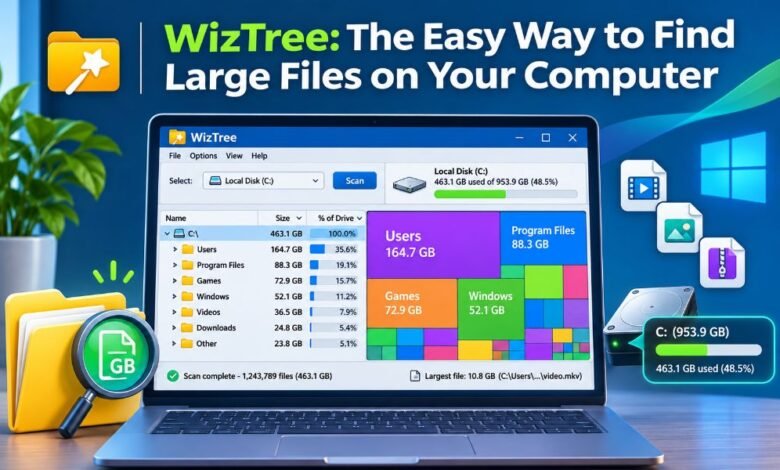
Does your computer keep showing a low storage warning? Do you want to know what is taking up so much space? Large files can fill your hard drive without you noticing. Old videos, games, downloads, and backup files can use many gigabytes of storage. Finding these files by hand can take a long time. This is where WizTree can help.
WizTree is a disk space tool that shows which files and folders take up the most room. It scans your drive and shows the results in a clear way. You can find large files, check folder sizes, and decide what you no longer need. In this guide, you will learn how WizTree works, what its main features do, and how to use it to free up space on your computer.
What Is WizTree?
WizTree is a disk space analyzer made by Antibody Software Limited. It helps people find large files and folders on their computers. A disk space analyzer is a tool that checks how much room each file uses. WizTree shows this data in a list and a color map. You can see which folders use the most space without opening them one by one.
The Windows version works with hard drives, SSDs, USB drives, and network drives. In September 2026, the company also released WizTreeMac for Apple computers. The tool is free for personal use. Businesses need a paid license. WizTree does not remove files on its own during a normal scan. It helps you find them so you can choose what to keep or delete.
How Does WizTree Work?
WizTree works by checking the files and folders stored on a drive. When you select a drive, the program reads its file data and builds a list. The list shows how much space each folder uses. You can open a folder in the list to see the files inside it. You can also sort files by size. This makes large files easy to find.
On Windows, WizTree has a special way to scan NTFS drives. NTFS is a file system that Windows uses to store data. WizTree reads a file record called the Master File Table, or MFT. This record holds details about the files on the drive. Reading it helps the tool finish many scans in a short time. Other drive types may take longer to scan.
Why Is WizTree So Fast?
Speed is one of the main reasons people choose WizTree. Many disk tools check folders one at a time. This can take several minutes on a drive with many files. WizTree uses a faster method when it scans an NTFS drive on Windows. It reads the drive’s file list rather than opening each folder to count its files. This can save a lot of time.
A scan may finish in seconds, but the time depends on the drive and the number of files. For its fastest NTFS scan, WizTree needs administrator rights. It can still run without them, but it may use a slower method. USB drives, network drives, and other file systems may also take more time.
Main Features of WizTree
Fast Disk Space Analysis
The main job of WizTree is to show where your storage space has gone. After a scan, it lists folders with their sizes. You may find that a game folder uses 80 GB or that old videos use 40 GB. These are only examples, but they show why file size matters.
WizTree also displays the share of space used by each folder. This helps you compare different parts of a drive. You do not need to check every file by hand. You can start with the largest folders and work your way down. This is useful when you want to clean a full drive but do not know where to begin.
Visual Treemap for Easy File Search
WizTree has a feature called a treemap. A treemap is a large picture made of many colored blocks. Each block stands for a file or a group of files. Large blocks show items that use more storage space. Small blocks show items that use less space.
This makes it easy to spot the largest files. For example, a large video may appear as a big block beside many smaller files. You can select an item to see more details. The treemap works well for people who find long file lists hard to read. It gives you a quick view of how your drive space is used.
Find Large Files With Search Filters
WizTree also includes a file search tool. You can use it to look for certain files without checking every folder. For example, you can search for *.mp4 to find MP4 video files. You can search for *.zip to locate ZIP archives. The Windows version also has size filters.
You can enter >=1gb to look for files that are at least 1 GB in size. This is helpful when you know that videos, downloads, or old backup files may be taking up space. You can also use date filters to find files based on when they changed. These tools help you narrow your search and focus on files that may be worth checking.
Find Possible Duplicate Files
Duplicate files can waste storage space. You may have two copies of the same video or several copies of a downloaded file. WizTree has a duplicate search feature that can help you find possible matches. It can check file names, sizes, and dates. You can then look at the results and decide which files you need.
However, there is one point to keep in mind. WizTree does not compare the full contents of each file when finding duplicates. Two files may have the same name and size but hold different data. Always open or check important files before removing a copy. This will help you avoid losing something you need.
How to Download and Install WizTree
You should download WizTree from its official website at https://diskanalyzer.com/download. The site offers a Windows installer and a portable version. The installer adds the program to your computer. The portable version can run without a full installation after you extract its files. To install WizTree on Windows, visit the official download page and choose the installer.
Open the downloaded file and follow the steps on your screen. Once the setup ends, start WizTree from your computer. You may see a request for administrator rights. These rights help it use the fast NTFS scan method. Mac users can download WizTreeMac from the same website. It supports macOS 12 or later. Always use the official download source to reduce the risk of getting changed or unsafe software.
How to Use WizTree to Find Large Files
Using WizTree is simple, even if you have never used a disk space tool before. Start the program and select the drive you want to check. For most Windows users, this will be the C: drive. Click the Scan button and let WizTree read the file data. When the scan ends, look at the folder list. The largest folders are easy to find when you sort them by size.
Click a folder to see what is inside it. You can also use the File View to find large files across the drive. If you prefer pictures, check the treemap at the bottom of the program. Select a large block to see which file it represents. Before you delete anything, check the file name and location. Make sure the file is not needed by Windows or another program.
How to Free Up Disk Space With WizTree
Finding large files is only the first part of cleaning your computer. The next step is deciding which files you can remove. Start with your Downloads folder. It may contain old setup files, videos, and archives you no longer need. Next, check folders where you save movies, photos, and game files. Large files you want to keep can be moved to another drive or backed up to a safe location.
If you find a game or program you no longer use, uninstall it through Windows Settings instead of deleting its program folder. You should also check your Recycle Bin after removing files. Files in the Recycle Bin may still use storage space until you empty it. WizTree helps you find what takes up space, but you must decide what is safe to remove.
Is WizTree Safe to Use?
WizTree is a real disk analysis program from Antibody Software Limited. Its normal scanning feature reads information about files and folders. It does not need to delete your data to show storage results. However, WizTree also gives you ways to delete files. This means you must use care. Do not delete files from the Windows folder, system folders, or program folders unless you know what they do.
Some files are needed to start your computer or run your apps. Removing them may cause errors. You should also keep a backup of important documents, photos, and work files. Downloading the program from its official website is another wise step. WizTree can help you clean your drive, but safe file choices remain your job.
WizTree Free vs Paid Version
WizTree offers a free version for personal use and paid licenses for business use. The free version includes the main tools most home users need. You can scan drives, view the treemap, search for large files, find possible duplicates, and export file data. This makes it useful for people who want to clean their own computers.
The free version shows a donation button and does not include official support. The paid version allows business use and removes the donation message from exports. It also includes support. The correct paid license depends on the size of the business. Large companies can choose an enterprise license. If you only want to check storage on your home computer, the personal version may meet your needs without a fee.
WizTree vs Windows Storage Tools
Windows has built-in storage tools that help you find and remove unwanted files. For example, Windows Storage settings show how much room apps, documents, and temporary files use. Storage Sense can also help clean certain files based on your settings. These features are useful for basic computer care. WizTree gives you a more detailed view of individual files and folders.
You can see the full folder tree and find large files through the search tool. The treemap also makes it easier to see how storage is split across the drive. Windows tools are a good choice for routine cleanup. WizTree is useful when you need to find a large file that the normal storage view does not make easy to locate. Both tools can work well together.
Common Problems WizTree Can Help You Find
A full drive can have many causes. One common cause is a Downloads folder filled with old files. Another is a large video folder. Games can also take up a lot of room, mainly when new updates add more data. Some programs save big cache files, which are files used to store data for later use. Backup files may also grow over time.
WizTree can help you find these folders and check their size. It can also show where large temporary files are stored. Still, a large file is not always a bad file. Some large files hold important work, game data, or system data. The goal is not to delete every large file. The goal is to find files you no longer need and make room without causing problems.
Tips for Getting the Best Results From WizTree
To get useful results from WizTree, start by scanning the drive that has the least free space. Look at the largest folders first, since these offer the best place to begin. Use the search filters if you want to find videos, archives, or other file types. If a file name looks strange, do not delete it right away. Search for its purpose or check which program owns it.
Keep your personal photos and documents backed up before making major changes. You can also save scan data as a CSV file if you want to compare storage use over time. After cleaning your drive, scan it again to see how much space you have freed. A fresh scan can help you track new large files before your storage becomes full again.
Who Should Use WizTree?
WizTree is useful for students, home users, gamers, and people who store many files on their computers. Students may use it to find old class videos and downloads. Gamers may use it to check which games and files take up the most room. People who edit videos or photos may find large project folders that they forgot about.
It can also help computer support workers find the cause of a full drive. The simple file list makes it easy for new users to learn. More skilled users can use filters, exported data, and other tools for deeper checks. WizTree is a good fit for anyone who wants to understand their storage space and find large files without opening every folder.
Final Thoughts
WizTree is a useful tool for anyone who wants to find large files and understand their computer’s storage space. It scans drives, shows folder sizes, and gives you a clear picture of where your storage has gone. Its treemap, file search, and duplicate search features make the job easier.
The free personal version also gives home users access to its main tools without a fee. The most important step is to check files before removing them. Not every large file is safe to delete. When used with care, WizTree can save time, help you clear unwanted data, and make it easier to keep your computer storage in good shape.