

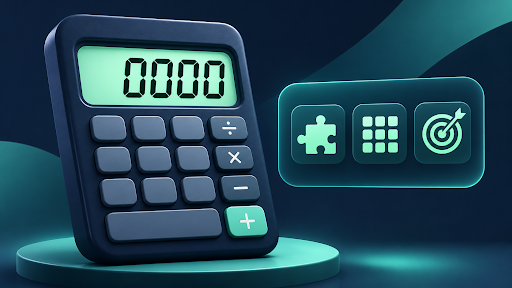
The Calc Solver 0000 code opens an activity menu in versions of the calculator that support four-digit Code Mode. Turn on Code Mode, enter four zeros, and follow the prompt on your screen. Some versions open the menu as soon as you enter the fourth digit. Others ask you to submit the code with Enter or =.
The key detail is that Code Mode changes what the calculator does with the number keys. In regular mode, those keys build a calculation. In Code Mode, the same keys enter a short sequence that points to a menu or an individual activity. That difference explains why typing four zeros into an ordinary calculator display may simply leave you looking at zero.
What Are Calc Solver Codes?
Calc Solver codes are four-digit shortcuts used by certain browser calculators. An activity code takes you directly to the corresponding item, while 0000 opens a menu where you can browse the available activities. The menu is a good starting point if you have never used the feature or only know an activity’s name.
A reference for calc solver codes gives you a starting point when you want to look up a sequence. Before using a code from any guide or video, compare its website address with the one in your browser. Several calculator sites use similar names but publish different activity lists. One documented version lists six maths games, while another lists a much larger catalogue of browser games. An activity code from one list may open something different on another site.
What Does the 0000 Code Open?
Think of 0000 as a shortcut to an index. Once the activity menu opens, you can see what that version offers and decide what to launch. If you already have a valid code for a particular activity, you can enter it directly and skip browsing the menu.
Keep all four digits. In arithmetic, 0 and 0000 represent the same value. A code is a sequence, so the leading zeros are part of the input. Entering one zero and waiting can leave you at the code prompt because the calculator is still expecting three more digits.
If you are looking for a specific activity, check its name as well as its number. For instance, 1001 is listed as Math Sprint on one site and ZigZag Snow Mountain on another. The code alone tells you very little unless you know which calculator it belongs to.
How to Enter 0000 in Code Mode
- Open the calculator page. Look for the control labelled Code Mode near the calculator.
- Switch Code Mode on. Check whether the display changes to a code prompt or a row of digit indicators. The exact appearance varies by site.
- Enter 0000. Tap zero four times on the on-screen keypad, or type four zeros if the page accepts keyboard input.
- Check what happens after the fourth digit. If the activity menu opens, you can browse it immediately. If the code remains on screen and the page provides a submit control, use Enter or = as directed.
- Return to the calculator when you are done. Follow the menu’s close or return control and check that Code Mode is off before starting a calculation.
Should You Use the Keyboard or the On-Screen Keypad?
On a laptop, the keyboard can be quicker, but the page needs to receive your keystrokes. If you last clicked the browser’s address bar or a search field, typing may put the zeros there. Click inside the calculator first, then enter the code again. If the page offers an on-screen keypad, tapping its buttons is a straightforward way to check whether the calculator is receiving input.
How Code Mode Differs From Scientific Calculator Shortcuts
The word code can refer to two different inputs. A four-digit activity code tells the site what to open. A typed mathematical function, such as sqrt(64), tells a calculator what to evaluate. Some browser calculators accept typed functions in their regular calculation mode even when the four-digit Code Mode switch is off.
If you are comparing instructions, start with the guide to how Code Mode works and match the controls in the guide to the ones on your screen. For a numerical answer, use regular calculator mode. To browse activities, switch modes and enter 0000. To open a particular activity, use the four digits listed next to its name on that site.
Why a Calc Solver Code Might Fail
| What you see | What to check |
| The display treats the zeros as a number | Confirm that Code Mode is on before re-entering 0000. |
| The calculator registers fewer than four digits | Clear the partial entry and tap each digit on the on-screen keypad. |
| Four digits stay on the display | Check whether the site expects you to press Enter or =. |
| The display clears or reports an invalid code | Look up the activity in the menu for the exact site you are using. |
| The code opens an unexpected activity | Compare the website address with the source of the code. |
If 0000 works but an individual code fails, the calculator has already shown that it can accept code input. Open the menu again and look for the activity by name. That gives you a better way to identify the right sequence than trying nearby numbers. If you have a favourite activity, save its name alongside its code and website address so you can find it again.
Frequently Asked Questions
Is 0000 a universal calculator code?
No. It opens the activity menu on documented Calc Solver versions that support the shortcut. Other calculators may use the digits as ordinary numeric input.
Do I need to press Enter after typing 0000?
It depends on the website. Some versions respond on the fourth digit. Others require Enter or =.
Can I open an activity without using 0000 first?
Yes. If you know the activity’s code for that calculator, enter it directly with Code Mode on.
How do I go back to ordinary calculations?
Close the activity or menu using the page’s return control, then turn Code Mode off if it is still active.