

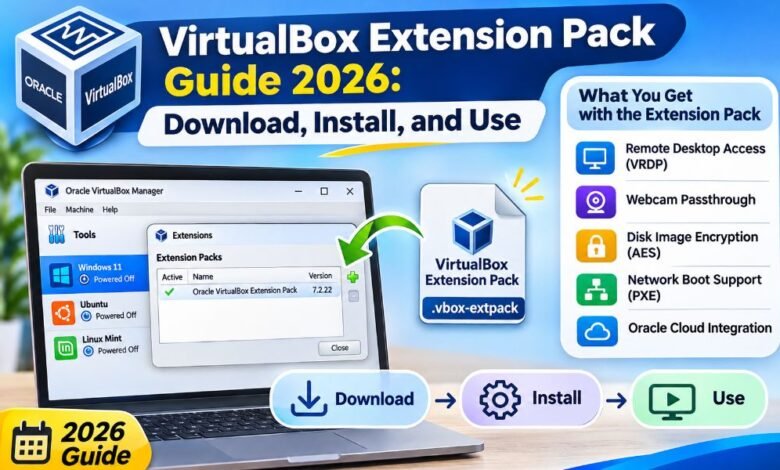
VirtualBox is a useful tool for running more than one operating system on a computer. You can use it to test Windows, Linux, and other systems without changing your main system. But some tasks need extra features. This is where the VirtualBox Extension Pack can help.
It adds tools for remote access, disk safety, webcam use, and other advanced tasks. Oracle makes this pack for people who need more from their virtual machines.
If you are new to VirtualBox, the setup may seem hard at first. This guide explains what the pack does, where to download it, how to install it, and how to fix common problems in 2026.
What Is VirtualBox Extension Pack?
The VirtualBox Extension Pack is an extra software package made by Oracle. It adds special features to the main VirtualBox program. These features help users work with virtual machines in new ways.
A virtual machine is like a second computer inside your main computer. It can run its own operating system and programs. For example, you can use a Linux virtual machine on a Windows PC. This lets you test software without changing your main setup.
The main VirtualBox program already has many useful tools. The Extension Pack adds features such as remote desktop access, webcam support, and disk encryption. You do not need it to create a basic virtual machine. It becomes useful when you need one of its extra features.
Why Is VirtualBox Extension Pack Useful?
The VirtualBox Extension Pack gives users more ways to manage their virtual machines. It can help students, developers, and IT workers who need tools beyond the basic program.
For example, a developer may need to access a virtual machine from another computer. An IT worker may want to protect data stored on a virtual disk. Someone testing video software may need access to a webcam inside a virtual machine.
These tasks can be easier with the right extension features. Still, you should install the pack only when you need what it offers. A basic VirtualBox setup works without it. The pack does not make every virtual machine faster or fix every system problem.
Main Features of VirtualBox Extension Pack
1. Remote Desktop Access
One key feature is VirtualBox Remote Desktop Protocol, also called VRDP. This lets you view and control a running virtual machine from another computer. You can use a supported Remote Desktop client to connect to the machine.
This feature can help when you manage a virtual machine on a server. You do not need to sit in front of the main computer to use it. You must turn on remote display for the virtual machine and set up safe access before connecting.
2. Webcam Passthrough
Webcam passthrough lets a virtual machine use a camera from the main computer. This can help when you test video calls or camera apps inside a guest system.
For example, you may run Windows inside VirtualBox on your computer. With the right setup, the guest system can use a supported host webcam. Some cameras may not work as expected, so check device support and guest drivers.
3. Disk Image Encryption
The VirtualBox Extension Pack also supports AES disk image encryption. This feature helps protect the data stored in a virtual disk. You can set a password to keep other people from opening that disk without permission.
This is useful when a virtual machine stores private files. However, disk encryption does not protect every part of a virtual machine. Saved memory and some other VM data may remain outside this protection. Keep strong passwords and safe backups.
4. Network Boot Support
The pack includes an Intel PXE boot ROM. PXE means Preboot Execution Environment. It lets a computer start an operating system setup through a network rather than a local disk.
Network boot tools are useful in some IT labs and test systems. They help people test network-based installs and older system setups. Most home users will not need this feature.
5. Cloud Integration
Oracle also includes cloud integration features in the Extension Pack. These features help link some virtual machine tasks with Oracle Cloud Infrastructure.
Cloud tools may be helpful when a business uses both local virtual machines and cloud systems. You still need the right cloud account, settings, and access rights.
How to Download VirtualBox Extension Pack in 2026
Downloading the VirtualBox Extension Pack is simple. The most important step is choosing the correct version. Oracle offers a pack that matches each supported VirtualBox release.
Follow these steps:
-
Open the official VirtualBox download page.
-
Find the Oracle VirtualBox Extension Pack section.
-
Check the version of VirtualBox on your computer.
-
Select the Extension Pack with the same version number.
-
Download the .vbox-extpack file.
-
Save it somewhere easy to find, such as your Downloads folder.
As of November 9, 2026, Oracle lists version 7.2.22 as the latest release. If you use VirtualBox 7.2.22, download Extension Pack 7.2.22. If you use an older version, find its matching pack.
Always use Oracle’s official download pages. Files from unknown websites may contain unsafe changes. You can also use Oracle’s SHA256 checksums to check that your downloaded file is correct.
How to Install VirtualBox Extension Pack Step by Step
You can install the VirtualBox Extension Pack through the VirtualBox Manager. This method works well for beginners.
Step 1: Open VirtualBox
Start Oracle VirtualBox on your computer. Make sure the main program works before you install the extension. It is best to close any running virtual machines first.
Step 2: Open the Extensions Tool
In VirtualBox Manager, open the Extensions tool. The exact place may depend on the program version and layout. This tool shows the extension packs installed on your computer.
Step 3: Select the Downloaded File
Click the install option and find the .vbox-extpack file you downloaded. Select the file and confirm your choice.
Step 4: Read the License
VirtualBox will show the license terms. Read them before you continue. Accept the terms only if your planned use follows the license rules.
Step 5: Complete the Installation
Follow the steps shown on the screen. Your computer may ask for administrator permission. Give permission only when you trust the file and know it came from Oracle.
Step 6: Check the Installed Pack
Return to the Extensions tool after the setup ends. You should see the Oracle VirtualBox Extension Pack in the installed list. Check that its version matches your VirtualBox version.
If you see an error, close VirtualBox, check the downloaded version, and try again.
How to Install VirtualBox Extension Pack Using Commands
People who use Linux or manage several computers may prefer the command line. VirtualBox includes a tool called VBoxManage for this task.
Open a terminal where the VBoxManage command is available. Then run the install command with the path to your file.
VBoxManage extpack install “/path/to/extension-pack.vbox-extpack”
Replace the sample path with the real file path on your computer. The program may ask you to review and accept the license terms.
You can also check installed extension packs with this command:
VBoxManage list extpacks
This command shows the installed pack name, version, and status. If the pack is not usable, check the error details. On some systems, you may need administrator rights to complete the setup.
How to Use VirtualBox Extension Pack After Installation
Installing the pack does not turn on every feature at once. You must set up the feature you want to use.
For example, to use remote desktop access, open the settings of a virtual machine. Look under the display options for Remote Display. Turn on the server, choose the needed connection settings, and use a supported remote desktop client.
You should also set up authentication and secure network access. Do not open remote desktop access to the public internet without proper protection.
For disk encryption, open the virtual machine’s settings and find the encryption options. Set a strong password and keep it in a safe place. Losing that password may mean losing access to your disk data.
Each feature has its own setup rules. Oracle’s user guide gives more details about each tool.
Does VirtualBox Extension Pack Support USB 2.0 and USB 3.0?
Many older guides say that you must install the VirtualBox Extension Pack to use USB 2.0 or USB 3.0. This is not a good general rule for current VirtualBox 7.2 systems.
The current main VirtualBox package includes USB device support. You can set up a virtual USB controller and attach supported USB devices without needing the Extension Pack just for normal local USB access.
To connect a device, shut down your virtual machine and open its USB settings. Enable a supported USB controller and add a device filter if needed. Start the machine and check whether the guest can see the device.
On Linux, users may also need to join the vboxusers group. Some devices need drivers inside the guest system.
The Extension Pack still provides special features linked to remote access, including remote USB support in some VRDP setups. This is different from using a USB drive connected to your own computer.
VirtualBox Extension Pack vs Guest Additions
The Extension Pack and Guest Additions are not the same thing. They solve different problems.
The Extension Pack installs on the host computer. It adds features to the VirtualBox program itself. Guest Additions installs inside the guest operating system and helps that system work with the host.
Guest Additions can help with screen resizing, mouse movement, shared folders, and other guest tools. If you want better screen resizing or easier file sharing, Guest Additions may be what you need.
You can use both packages when your setup needs them. But installing one does not replace the other.
Common VirtualBox Extension Pack Errors and Fixes
Version Does Not Match
A version mismatch is a common setup problem. It happens when the Extension Pack version does not match the main VirtualBox program.
Check both version numbers. Download the correct pack from Oracle, then try the installation again.
Extension Pack Installation Fails
An installation may fail because of missing permission, an older installed pack, or a damaged download.
Close VirtualBox and any running virtual machines. Check that you have the right permissions. Download a fresh file from Oracle if needed. You can remove an old pack before installing the correct one.
VirtualBox Extension Pack Is Not Usable
Sometimes the pack appears in the installed list but does not work. This can happen after you update VirtualBox without updating the Extension Pack.
Open the Extensions tool and check its status. If the versions differ, install the matching release. Restart VirtualBox after the change.
USB Device Is Not Showing
If a USB device does not appear inside a virtual machine, first check the virtual USB settings. Make sure the device is connected, the guest has the right driver, and the host is not keeping control of it.
Linux users should check their USB access permissions. Installing the Extension Pack alone may not solve this problem.
How to Update or Remove VirtualBox Extension Pack
Keeping the Extension Pack up to date helps it work with the main program. When you update VirtualBox, check whether a matching Extension Pack is available.
Download the new pack from Oracle. Close running virtual machines and open the Extensions tool. You can remove the old version and install the new one. The command-line installation also supports a –replace option for replacing an older pack.
If you no longer need the Extension Pack, open the Extensions tool, select the installed pack, and choose Uninstall. This removes the extension without removing the main VirtualBox program.
Do not remove a pack while a running virtual machine depends on its features. Shut down the machine first.
Is VirtualBox Extension Pack Free and Safe?
The VirtualBox Extension Pack is available to download from Oracle. But free downloading does not mean every type of use is free.
Oracle provides the pack under its Personal Use and Evaluation License, also called PUEL. The license has rules about how you can use the software. Personal use and testing may qualify under those terms. Business users should review the license and check whether they need a paid commercial license.
The official pack is a legitimate Oracle product. Still, you should download it only from a trusted source. Keep VirtualBox updated, check downloaded files, and avoid unknown installers.
The pack also does not make a virtual machine fully secure. You must keep the host and guest systems updated and use safe passwords.
Final Thoughts
The VirtualBox Extension Pack is a useful extra tool for people who need more than basic virtual machine features. It adds remote access, webcam passthrough, disk protection, and other tools that help with testing and IT work. The setup is simple when you download the correct version and follow Oracle’s instructions.
In 2026, the most important steps are to use the official download page, match the Extension Pack version with your VirtualBox version, and read the license terms. You should also know that many basic tasks, including normal local USB use, already work without the pack.
If you need one of the extra features, the VirtualBox Extension Pack can be a useful part of your virtual machine setup.