

Record yourself typing a paragraph and play it back. You’ll see bursts, stalls, a wrong letter, three quick backspaces, and a pause while you decide how the sentence ends. Now picture that same paragraph appearing in a single frame because you pasted it. Same words. A completely different picture on screen.
That gap is what a human auto typer is built to fill. It’s a small tool, usually a browser extension, that takes text you already have and enters it into an editor one character at a time, at a pace that looks like a person at a keyboard. Here’s what happens under the hood, where it’s useful, and where it isn’t.
A Plain Definition Before the Mechanics
A human auto typer is a text-entry tool. You give it finished text, choose a speed, and it “types” that text into whatever field your cursor is sitting in. Unlike a basic macro that dumps characters as fast as the computer allows, it adds timing variation, short pauses and, if you want, occasional typos that it corrects straight away.
Two things it doesn’t do. It doesn’t write anything, and it doesn’t change your words. What goes in is exactly what comes out, which matters later when we get to the limits.
Older auto typers were desktop macro programs for repeating the same line in games or chat windows. The human-paced versions are newer and mostly live in Chrome, where they target browser editors like Google Docs, Slides, web forms and online portals.
How People Actually Type, in Numbers
To imitate typing, you need to know what typing looks like. The best public data comes from researchers at Aalto University and the University of Cambridge, who analyzed 136 million keystrokes from about 168,000 volunteers (Dhakal et al., CHI 2018).
A few of their findings shape every decent auto typer:
- The average participant typed 51.56 words per minute.
- The slowest 10% typed under about 26 WPM, the fastest 10% topped about 78 WPM, and the quickest reached 120 WPM or more.
- The average gap between keystrokes was about 239 milliseconds. Fast typists averaged roughly 120 ms, while slow typists went over 480 ms.
- Backspace or Delete made up 6.3% of keypresses, about 2.29 corrections per sentence.
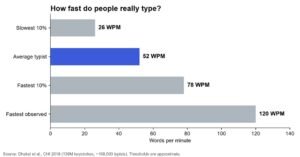
Typing speeds measured across 136 million keystrokes from about 168,000 volunteers. Source: Dhakal et al., CHI 2018.
One caveat. Those volunteers were keen typists (most had taken a typing course), so the general population is probably a little slower. Still, it gives a realistic target. Sustained speeds well above 120 WPM across a long document start to look odd, and anything under 26 looks labored.
What Happens Inside the Tool
The mechanics are simpler than you’d guess. Most extensions run the same loop.
Breaking Text Into Keystrokes
The tool splits your text into individual characters, including spaces, line breaks and punctuation. Each one becomes a separate input event sent to the page, the same kind of event the browser receives when you press a real key. To Google Docs, it just looks like characters arriving.
Timing Each Character
This is where “human” comes from. Instead of a fixed delay, the tool picks a slightly different interval for each keystroke around your chosen speed. At 50 WPM, which works out to roughly 250 characters a minute, the average gap lands near 240 ms, almost exactly the study’s average. Some gaps run shorter, some longer, so the rhythm never looks mechanical.
Pauses at natural break points
Good tools stretch the delay after punctuation, between sentences and at paragraph breaks, because that’s where people stop to think. A few also add a rare hesitation mid-word.
Making and Fixing Mistakes
Typo simulation is optional. When it’s on, the tool occasionally types a wrong character, then backspaces and puts the right one in. Most real errors are substitutions, like hitting a neighboring key. The CHI study found those were more common than skipped or extra letters (1.65% versus 0.8% and 0.67%). Sensible typers favor that kind of slip, and the final text still matches your input exactly.
Phrasly’s Settings as an Example
Phrasly’s human auto typer for Google Docs is a typical example of the category. It’s a Chrome extension with speeds from 30 to 240 WPM, pauses between sentences and after punctuation, and an adjustable typo-and-correct rate. It works in Google Docs and Slides, plus many web forms and browser editors. The flow is three steps: paste your text into the extension, set speed and error options, then press start with your cursor in the document.
Pasting, Typing Yourself, or Auto Typing
| Method | Speed | How it looks on screen | Best for |
| Paste | Instant | Whole block appears at once | Everyday editing |
| Typing yourself | About 52 WPM on average | Natural, with real errors | Original drafting |
| Human auto typer | 30 to 240 WPM, your choice | Gradual, steady, optional typos | Demos, blocked fields, accessibility |
Where an Auto Typer Earns Its Place
Screen Recordings and Live Demos
If you’ve ever recorded a tutorial, you know the problem. Type live and you fumble. Paste and viewers can’t follow what just happened. An auto typer gives you clean, readable typing at a pace people can track, which is why trainers, YouTubers and teachers running writing demos reach for one.
Fields That Block Pasting
Some application portals, registration pages and older web forms disable paste. If you drafted a long answer in a document first, retyping it by hand is tedious and invites fresh mistakes. An auto typer fills the field from your own draft.
Formatting That Breaks on Paste
Pasting from Word or an email can drag along hidden styles, odd fonts and strange spacing. Typed input arrives as plain characters, so the target editor’s own formatting applies.
Accessibility and Repetitive Strain
This one gets overlooked. The UK’s Health and Safety Executive estimated that 511,000 workers had a work-related musculoskeletal disorder in 2024/25, with 211,000 cases mainly affecting the upper limbs or neck (HSE, 2025). For people who draft with dictation software or need to limit keyboard time, a tool that handles long stretches of re-entry can make a real difference.
What an Auto Typer Can’t Do
An auto typer changes how text is entered, not who wrote it. It won’t move an AI detector’s score, because detectors read the words, and the words are untouched. I’d be wary of any product sold as a way to make borrowed or generated text look self-written. That isn’t a feature. It’s a risk to you.
If you’re a student, keep your own drafts and notes, and check your course policy before using any typing tool on graded work. If a teacher asks how a document was produced, be straight with them.
Two practical points as well. Leave the tab alone while it runs, since clicking elsewhere can send keystrokes to the wrong place. And look at the permissions an extension requests before installing it. This guide to how auto typer extensions behave in Google Docs covers privacy disclosures and safety checks in more detail.
A Typing Tool, Not a Writing Tool
Strip away the marketing and a human auto typer is a patient robot finger. It takes text you already have and enters it at a believable pace, pausing where people pause and slipping where people slip, using timing that mirrors how roughly 168,000 real typists behaved.
Use it for what it’s good at, like recording demos, filling paste-blocked forms or sparing sore wrists, and it saves time while looking clean. Treat it as a way to enter your own work and it earns its spot in your browser. Expect it to stand in for the writing itself, and you’re asking it to do a job it was never built for.