
Content CZ Mobilesoft AppBlock FileProvider Cache Blank HTML? Causes and Solutions

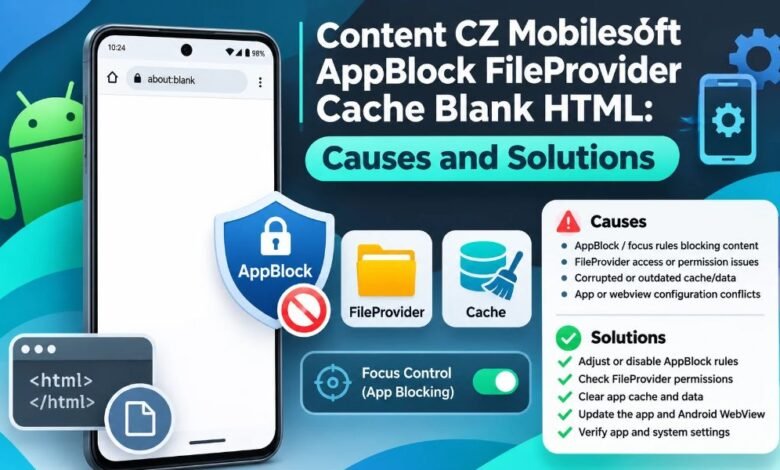
Many Android users see strange links on their phones. One such link is content cz mobilesoft appblock fileprovider cache blank html. It may appear when you open a website or use a browser. Instead of showing the page you want, your phone may display a blank screen.
This can make you feel confused. You may wonder if your phone has a virus or a serious problem. The good news is that this address is often linked to AppBlock, an app that helps people control screen time. It can stop certain apps and websites from opening.
Understanding content cz mobilesoft appblock fileprovider cache blank html can help you find the cause of the blank page. The address points to a file linked to the AppBlock app. In many cases, it appears when a website has been blocked. You do not need special computer skills to understand this issue. This guide explains the address, why it appears, and what you can do to fix unwanted blank pages.
What Is content cz mobilesoft appblock fileprovider cache blank html?
The term content cz mobilesoft appblock fileprovider cache blank html refers to an Android file address linked to AppBlock. AppBlock is a tool that helps people spend less time on distracting websites and apps. Users can set rules to stop certain pages from opening. When a blocked page tries to load, AppBlock may show a local blank page in its place.
The full address looks like this:
content://cz.mobilesoft.appblock.fileprovider/cache/blank.html
This is not a normal website link. It is a special address called a content URI. Android uses these addresses to let apps access certain files. The address points to a resource managed by an app. It does not point to a public website. You may see it in your browser or in a phone log.
Understanding the Parts of the AppBlock File Address
The long address looks hard to read, but each part has a simple meaning. The first part, content://, tells Android that the link uses its content system. The next part, cz.mobilesoft.appblock, names the AppBlock app. The word fileprovider refers to a tool Android apps use to share files with other apps. The word cache points to a place for temporary files. The last part, blank.html, names an HTML file that may show a blank page.
Knowing these parts makes content cz mobilesoft appblock fileprovider cache blank html easier to understand. It is an app file reference, not an ordinary internet address. Android’s FileProvider system also limits file access. An app needs the right access to open shared files.
Why Does content cz mobilesoft appblock fileprovider cache blank html Appear?
There are several reasons why this address may appear. The most common cause is an active AppBlock rule. Other cases may involve browser behavior or app settings. Let us look at these causes.
1. AppBlock Is Blocking a Website
AppBlock lets users block websites that take up too much time. For example, a person may block social media during school or work hours. When that person tries to open a blocked website, AppBlock stops access. The browser may show a blank local page instead.
This is one reason content cz mobilesoft appblock fileprovider cache blank html may appear on your screen. The app may be doing the job you asked it to do. If the website should remain blocked, you may not need to change anything.
2. Your Blocking Schedule Is Active
AppBlock lets users choose when certain websites should stay blocked. You can set a rule for the morning, afternoon, or night. You can also set different rules for different days. Once a schedule starts, AppBlock applies the chosen limits.
An active schedule may explain why content cz mobilesoft appblock fileprovider cache blank html appears at the same time each day. Check your schedules before changing other phone settings. The page may open again once the blocking period ends.
3. A Website Was Blocked by Mistake
Sometimes, users add too many websites to a block list. They may also use keywords that match more sites than they planned. This can block useful pages along with distracting ones.
For example, a broad keyword may match the name of a website you need. When the site is blocked, content cz mobilesoft appblock fileprovider cache blank html may appear instead. Open AppBlock and check your website and keyword rules. Remove any rule that blocks a page you need, if your settings allow changes.
4. Your Browser Shows a Local File Link
Different Android browsers may handle blocked pages in different ways. One browser may show a blank screen. Another may show a file address. Some browsers may not open the shared file as expected.
This can make content cz mobilesoft appblock fileprovider cache blank html look like a browser error. The address alone does not prove that the browser is broken. First, check if the website is on your AppBlock list. If it is not, try restarting the browser.
5. Temporary App Data May Cause Problems
Android apps save temporary files to help them work. These files are called cache files. They can help an app load common items without starting from the beginning each time.
A cache problem may cause a page to load in an odd way. However, the presence of content cz mobilesoft appblock fileprovider cache blank html does not prove that the cache is damaged. The blank file may be part of normal blocking. Clear the cache only if the page keeps appearing when it should not.
How to Fix content cz mobilesoft appblock fileprovider cache blank html on Android
If you want to open a website that should not be blocked, there are several things you can try. Start with simple checks. You do not need to delete the app right away.
1. Check Your AppBlock Website Rules
The first step is to open AppBlock and review its blocking rules. Look for active schedules and Quick Block settings. Check the websites and keywords you have added. Make sure the page you want to visit is not on the block list.
If you find the site, remove it from the list or change the rule when allowed. Save your changes and open the browser again. This may stop content cz mobilesoft appblock fileprovider cache blank html from appearing for that website.
2. Pause a Blocking Schedule
You may want to visit a blocked website for a short time. In that case, check whether your AppBlock settings allow you to pause the schedule.
Open the app and find the active blocking rule. Use the pause or stop option if it is available. Then return to your browser. If the page now opens, the blocking rule was likely the cause of content cz mobilesoft appblock fileprovider cache blank html. Remember that Strict Mode can stop users from changing rules until its conditions are met.
3. Clear the AppBlock Cache
Clearing temporary app data may help if AppBlock is not working as expected. Open your phone’s Settings app. Find Apps and select AppBlock. Look for Storage or Storage & cache. Tap Clear cache if your phone offers that option.
This removes temporary files. It does not normally remove the app itself. After clearing the cache, reopen AppBlock and test the website. If content cz mobilesoft appblock fileprovider cache blank html still appears, check the blocking rules again. Avoid tapping Clear storage or Clear data unless you understand that it may reset app settings.
4. Restart Your Android Phone
A phone restart can help when an app or browser gets stuck. Close your open apps and restart your device. Once it turns on, open AppBlock and check its current rules. Then test the website again.
This simple step may help with a temporary loading issue. However, a restart will not remove an active blocking rule. If content cz mobilesoft appblock fileprovider cache blank html returns when you open the same site, the AppBlock settings may still be stopping access.
5. Update AppBlock and Your Browser
Old app versions can have bugs. Updates may fix problems and help apps work better with Android. Open the Google Play Store and look for updates for AppBlock. You can also check for updates for your browser.
Install any trusted updates that are available. Then test the page again. This may help if content cz mobilesoft appblock fileprovider cache blank html appears because of an app problem. Keep in mind that an update will not remove a website block that you chose to keep.
6. Reinstall AppBlock If Needed
If the issue continues, you may consider reinstalling AppBlock. Before you do this, review your rules and save any settings you may need later. Removing the app may cause you to lose saved settings.
You can uninstall AppBlock through your phone settings when uninstalling is allowed. Then install it again from a trusted app store. If Strict Mode stops removal, use AppBlock’s official unlock steps. Reinstalling may help with an app fault, but it should be a last step for content cz mobilesoft appblock fileprovider cache blank html problems.
Is content cz mobilesoft appblock fileprovider cache blank html a Virus?
Many users worry when they see a strange address on their phones. The good news is that content cz mobilesoft appblock fileprovider cache blank html is not a sign of a virus by itself. Its format matches a normal Android content URI linked to AppBlock.
However, a file address cannot prove that every app on your phone is safe. If you do not remember installing AppBlock, open Settings and check your installed apps. You can also use Google Play Protect to scan for harmful apps. Avoid installing unknown files from websites that claim they can repair this address. Most users do not need a special repair tool.
What If You Never Installed AppBlock?
If you see content cz mobilesoft appblock fileprovider cache blank html but do not know why AppBlock is on your phone, check your installed app list. Someone who helped set up your phone may have added it. The app may also have been installed long ago.
Open Android Settings and search for AppBlock. Check the app details if it is listed. If you do not recognize it, review where it came from. Do not assume that the address alone proves someone is watching your phone. It only tells you which app file provider the link names.
How to Prevent Blank HTML Pages in the Future
You can reduce unwanted blank pages by keeping your AppBlock settings clear. Review your block lists from time to time. Make sure each website belongs there. Avoid using broad keywords that may block useful sites. Check your schedules before starting work or study.
It also helps to keep your phone and apps updated. If you see content cz mobilesoft appblock fileprovider cache blank html again, check your rules before clearing data. A blank page may mean the app is working as planned. Good settings can help you control screen time without blocking the pages you need.
Final Thoughts
The phrase content cz mobilesoft appblock fileprovider cache blank html may look strange, but its meaning is fairly simple. It refers to an Android file address linked to AppBlock. The app helps users limit access to websites and other apps. When a website is blocked, a browser may show a blank page instead.
In most cases, the address is not a reason to worry. If a page should open but does not, check your AppBlock rules first. Review your schedules, test your browser, and clear the cache if needed. These steps can help you find the real cause without making large changes to your phone.
Understanding content cz mobilesoft appblock fileprovider cache blank html can help you tell the difference between a normal website block and a problem that needs attention.





One Comment